All guides+
ProPro feature
Privacy requests
A form for visitors to use their DPDP rights, with email confirmation, a response clock and ready-made replies.
This is a Pro feature.
Get ProThis feature needs Kavin DPDP Cookie Consent Pro with an active licence. Pro is an add-on: it needs the free Kavin DPDP Cookie Consent plugin installed and active.
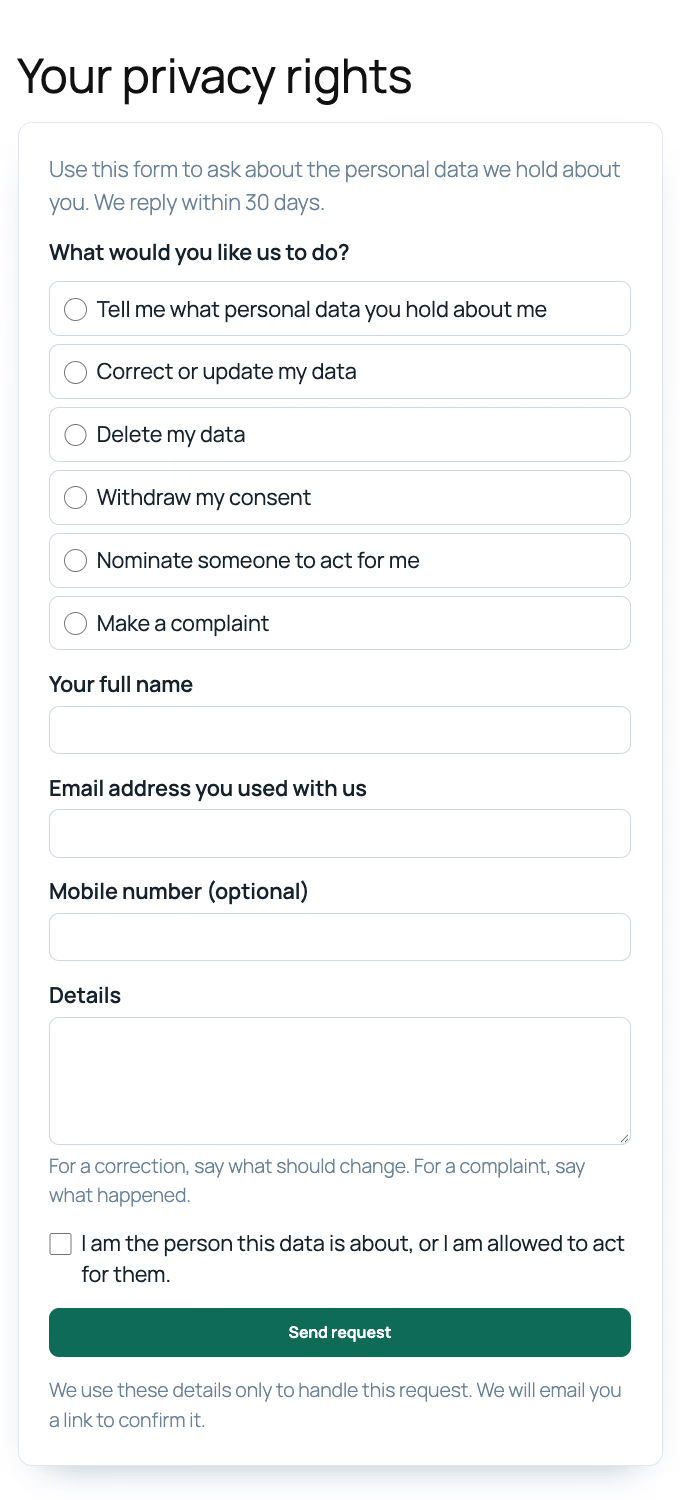
Sections 11 to 14 of the DPDP Act give people rights over their data. The Requests tab at Kavin Studios → DPDP Consent and the [kvn_dpdp_rights_form] shortcode let visitors ask, and help you answer on time.
Set up the form
- Create a page, for example "Your privacy rights", and add
[kvn_dpdp_rights_form]. - Publish the page.
- On the Requests tab, under Response time and form, set We reply within (days). The default is 30.
- Choose the page in Page with the request form.
- Click Save.
Rule 14(3) caps the response time at 90 days. The form shows your number, and so does [kvn_dpdp_response_time]. If the chosen page does not contain the shortcode, a warning says so. With the Privacy notice feature, the notice links to this page from its rights section.
What visitors can ask for
Under What would you like us to do?:
- Tell me what personal data you hold about me
- Correct or update my data
- Delete my data
- Withdraw my consent
- Nominate someone to act for me
- Make a complaint
They enter Your full name, Email address you used with us, Mobile number (optional) and Details. The nominee fields appear only for a nomination. They tick that they are the person the data is about, or allowed to act for them, and click Send request.
Email confirmation and the clock
- The visitor gets an email with a link to confirm the request.
- When they confirm, the response clock starts. The request gets a reference such as
DPR-2026-0001. - The visitor is emailed the reply-by date.
- You are emailed about the new request. It goes to your grievance contact email, or the site admin email if that is empty.
Unconfirmed requests wait with the status Waiting for email confirmation.
The request list
The tab shows counts for Open, Overdue, Due within 7 days and Waiting for confirmation. The number of open requests also shows on the tab name. Filter the list by All, Open, Unconfirmed or Done.
Each row shows Reference, Request, From, Received, Reply by and Status. Open requests show days left or days late.
Answer a request
Open a request to see the details and Their data on this site: their WordPress account and WooCommerce orders.
- Read the ready-made reply for this kind of request.
- Replace every "[Fill in: ...]" part. A reply that still has one is not sent.
- Add an Internal note (not sent) if you like.
- Click Send reply and mark Done, Send reply, or Save without sending.
Saved drafts are never sent by accident. Start again from the ready-made reply discards a draft.
Under WordPress privacy tool, choose Start a data export for a summary request, or Start a data erasure for deletion. Both cover WooCommerce and other plugins that support WordPress privacy tools.
Deletion checklist
On a delete request, tick each step as you do it and save:
- WordPress data erased
- Messages from contact and other forms deleted
- Removed from email and WhatsApp lists
- Service providers asked to delete it too
Fill in Kept because the law requires it (optional), for example invoices kept for tax law. The reply then lists what you deleted and what you kept.
History
Every step is kept in the request's History with its date: received, confirmed, replies, notes, status changes and checklist ticks. Status can be Open, Done or Closed without action.
Replies go through your site's normal email sending. If a reply could not be emailed, the history says so.