All guides+
ProPro feature
Privacy notice
Build a live privacy notice page from what your site actually does, in English and every language your banner offers.
This is a Pro feature.
Get ProThis feature needs Kavin DPDP Cookie Consent Pro with an active licence. Pro is an add-on: it needs the free Kavin DPDP Cookie Consent plugin installed and active.
Section 5 of the DPDP Act: your notice must list each item of personal data you collect and why, how to withdraw consent, how to use each right, and how to complain to the Data Protection Board. The Privacy notice tab at Kavin Studios → DPDP Consent builds that notice on one page, live.
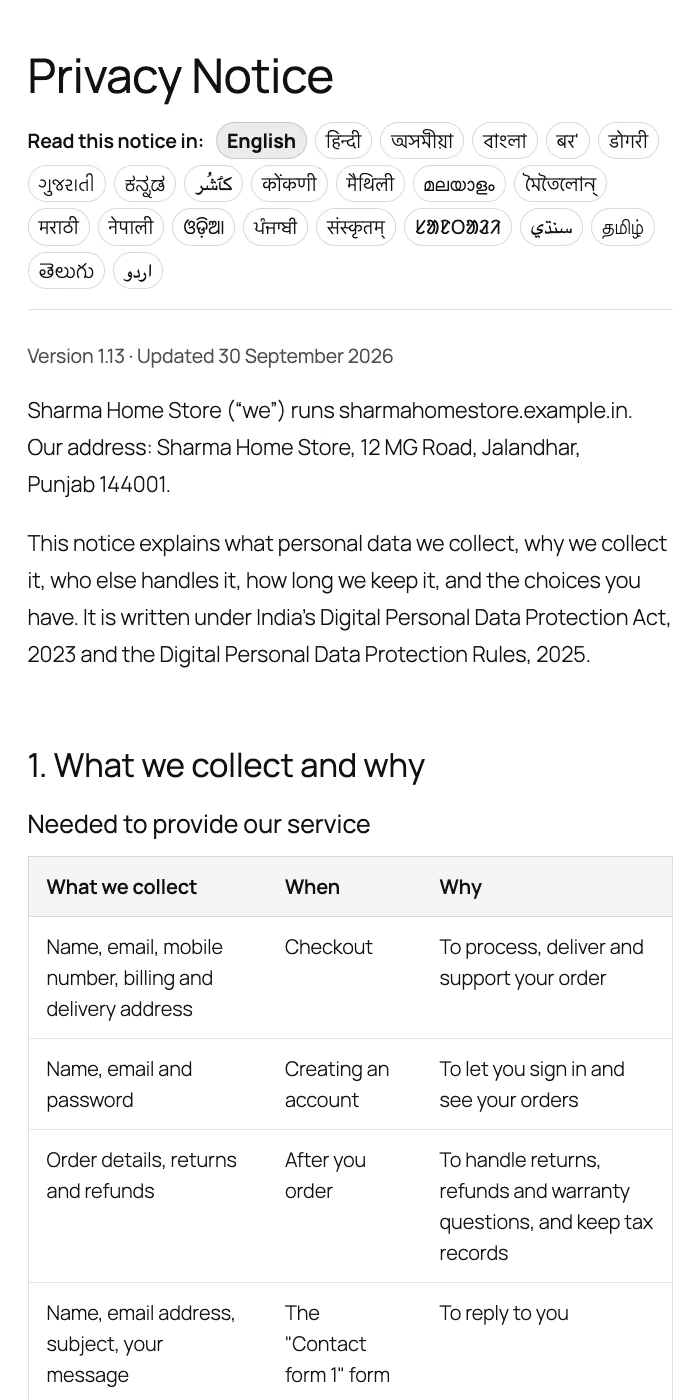
What the notice is built from
- the tracking tools on your site
- your forms from Kavin Contact Form Builder, Contact Form 7 and WPForms
- WooCommerce checkout and marketing choices
- comments and accounts
- your privacy request form
- the details you enter on this tab
It lists each item of data with its purpose, how long it is kept, how to withdraw, your visitors' rights and the grievance contact. When your tools, forms or details change, the notice updates by itself.
Before you publish it
The Before you publish it checklist must show Done for each item:
- Business responsible for the data (on Banner and notice)
- Grievance contact email (on Banner and notice)
- Postal address (on this tab)
- Site scanned for tracking tags (on Tracking tools)
It also tells you whether your privacy request form page is linked. See Requests.
Details only you know
Names are shown as you type them, in every language. Leave a box empty to leave it out.
- Postal address
- Phone for privacy questions (optional)
- Under Companies that handle data for you: Payment gateway, Courier or delivery partners, Website host, Email provider, Email or WhatsApp marketing service
- Anyone else, one per line: who, and why
If Payment gateway is empty, the gateways found in WooCommerce are used.
Who is your website for? sets what the Children section says:
- Adults and businesses
- Everyone, with children only through a parent
- Made for children
If you choose Made for children, the notice promises that you get verifiable consent from a parent before using a child's data. The plugin does not collect or check that consent. You need your own process.
How long form messages are kept: 6 months, 1 year, 2 years or 3 years after the last reply. Only promise what you do.
Forms in the notice: untick a form that is not on any page.
Click Save details.
Put the notice on a page
- Under Your notice page, choose a Page, or A new page.
- To replace the page's text, tick Remove the page's current text. It stays in the page's revisions. Otherwise the notice goes above it.
- Click Put the notice on this page.
A new page is saved as a draft for you to read first. Publish it when you have read it. Until then the banner links to your old notice page, or to the WordPress privacy policy page.
You can also add the [kvn_dpdp_privacy_notice] shortcode to any page yourself.
Once the page exists, the tab shows when its content last changed and What changed last.
Languages on the page
The page offers the same languages as the banner. Choose them on the Languages tab. Visitors pick their language at the top of the page. Anyone who chose a language in the banner is taken straight to it. Have a native speaker read each translation before you rely on it.
Edit the notice wording
- Under Edit the notice wording, pick a language and click Open.
- Change any line. Clear a box to go back to the plugin's wording.
- Click Save wording.
Keep placeholder codes and tags exactly as they are. A line that loses one is not saved. Changing English does not change the other languages. Your edits are kept when Pro updates. Undo all my edits in this language removes them.
Your own sections
Add what the plugin cannot know, such as work you do for clients. Enter a Heading and Text, choose Where it goes, and click Add section. Write it in English, then add other languages from Edit the notice wording.
When to ask visitors again
When a new tracking tool or purpose appears that visitors did not agree to, a note at the top of every tab offers Raise version and ask again.