All guides+
Free plugin
Banner and notice
Change the banner's wording, layout and colours, turn on Hindi, and add the details your privacy notice links need.
The Banner and notice tab at Kavin Studios → DPDP Consent sets what visitors see and who they can contact. Click Save banner and notice after any change.

Banner wording
Accept all and Reject all always look the same, so neither choice is easier to make.
- Heading: default "We use cookies only with your permission".
- Message: the short text under the heading.
- Accept button, Reject button, Choose button, Save choices button and "Privacy choices" button: the text on each button.
If you empty a box, it goes back to the plugin's default wording.
Layout and colours
Under Layout, pick one:
- Bottom bar: along the bottom of the page. Choose opens the categories in place.
- Corner box: a small box at the bottom left. Choose opens a settings window.
- Centred window: a window over the page with every category shown.
Under Colours, pick Light or Dark. Use Button colour to match your brand.
To check the result, save, then click preview the banner. It opens your home page with the banner showing, even if you have already made a choice.
The Privacy choices button
Show a small "Privacy choices" button on every page after a visitor chooses is on by default. Withdrawing must be as easy as agreeing. If you turn this off, put the [kvn_dpdp_choices] shortcode in your footer. See Shortcodes.
Hindi
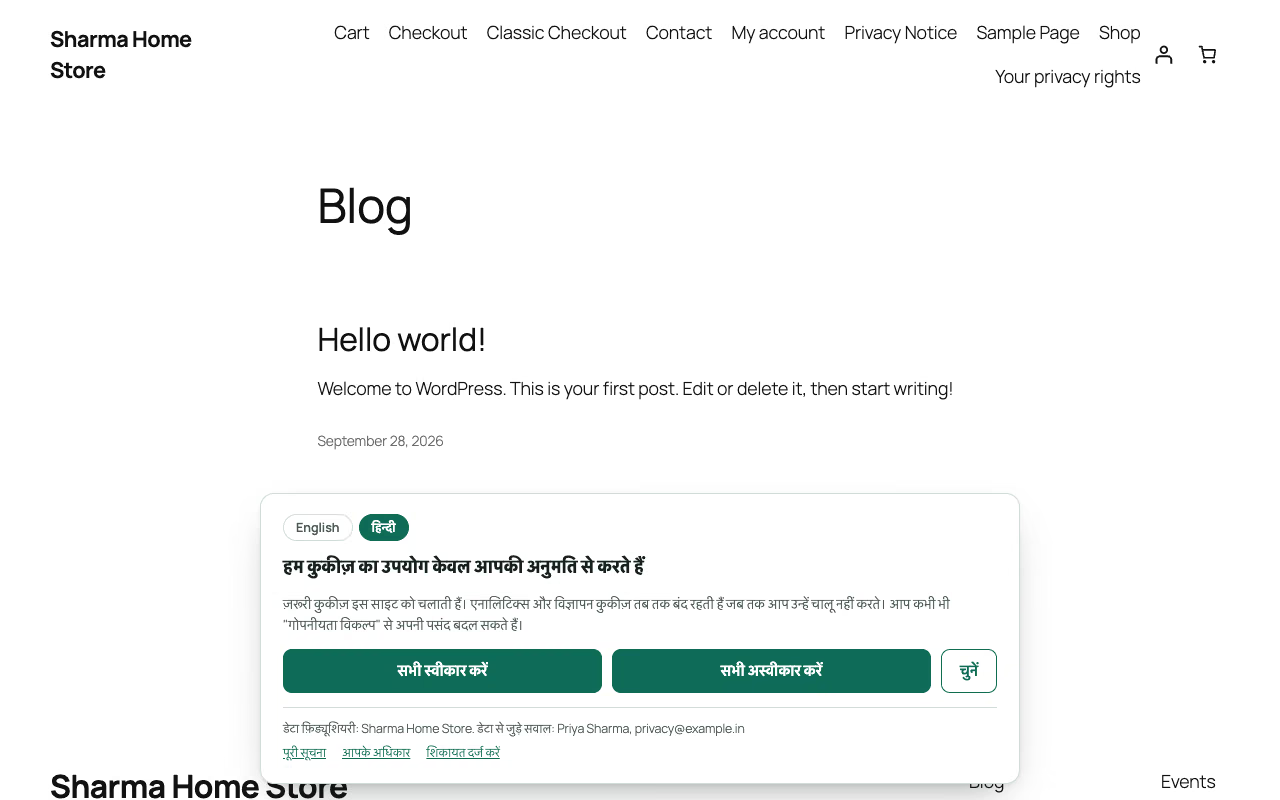
Show an English / हिन्दी switch at the top of the banner is on by default. Visitors whose browser is set to Hindi see Hindi first. Their pick is remembered in their browser.
You can edit the Hindi text in Heading in Hindi, Message in Hindi and the five button boxes below them.
For the other 21 languages of the Eighth Schedule, see Languages (Pro).
Privacy notice
These details appear at the foot of the banner and in the form notice.
- Business responsible for the data: the DPDP Act calls this the Data Fiduciary. Use the registered business name.
- Contact person for data questions: shown with the grievance email.
- Privacy notice page: linked from the banner and the form notice. If you leave it on Use the WordPress privacy policy page, the banner links to the page set in WordPress's own privacy settings.
- Grievance contact email: for example
privacy@example.in. The DPDP Rules require a published contact for privacy questions and complaints. - Form notice sentence: shown by
[kvn_dpdp_form_notice], followed by the notice link and grievance email. Default: "We use these details only to reply to your enquiry."
When these are filled in, the banner footer shows "Data Fiduciary:" with your business name, "Data questions:" with your contact, and links to Full notice, Your rights and Raise a grievance. A Withdraw consent link appears once a visitor has allowed something.
What visitors see in each category
When a visitor clicks Choose, the banner lists:
| Category | What it covers |
|---|---|
| Essential | Cart, login, security and remembering your choice. Always on. |
| Analytics | Count visits and see how the site is used. |
| Advertising | Measure our ads and show them to people likely to be interested. |
Each category has a What this collects table with the tool, what it collects, its cookies, how long they are kept and who it is shared with. A category with no tools on your site is left out. The visitor's own choice is kept in the kvn_dpdp cookie for 12 months.
Ask everyone again
The Ask everyone again box shows your current Notice version, which starts at 1.0.
When you add a new tool or change what the notice says, raise the version. Earlier choices no longer count, and every visitor sees the banner again.
- Click Raise version and ask again.
- The version goes up by one step, for example from 1.0 to 1.1.
Each consent record keeps the version it was given under. See Consent records.